
Lag in OBS is a broad complaint that covers several different problems, and treating them as one problem is the fastest way to waste an afternoon. A stream can stutter because the graphics card cannot draw the scene fast enough, because the encoder cannot compress the video fast enough, or because the internet connection cannot send the video fast enough. Each of those causes produces a similar-looking stutter for the viewer, but each needs a different fix. Lowering the bitrate will not help if the graphics card is the bottleneck. Lowering the resolution will not help if the network is the bottleneck. This guide shows you how to tell the three apart, using the numbers OBS already shows you, and then how to fix the one that is actually causing your lag.
Change one thing at a time and test after each change, with a test that lasts several minutes and uses the game or application you normally record or stream. A short test in a quiet menu will not reveal lag that only appears in a busy scene, and a test with no other programs open will not reveal lag that only appears when your browser, chat, and game are all running. The steps below are written for OBS Studio 33.0.1, released October 29, 2026, which is free and open-source software for Windows 10 and 11, macOS 13.0 or newer, and Linux, where support varies by distribution. Settings here are starting points, not guarantees, because the right resolution, frame rate, bitrate and encoder depend on your processor, graphics card, the content you are capturing, and your connection. Our guides to fixing OBS encoding overload and OBS bitrate settings cover two of those areas in more depth.
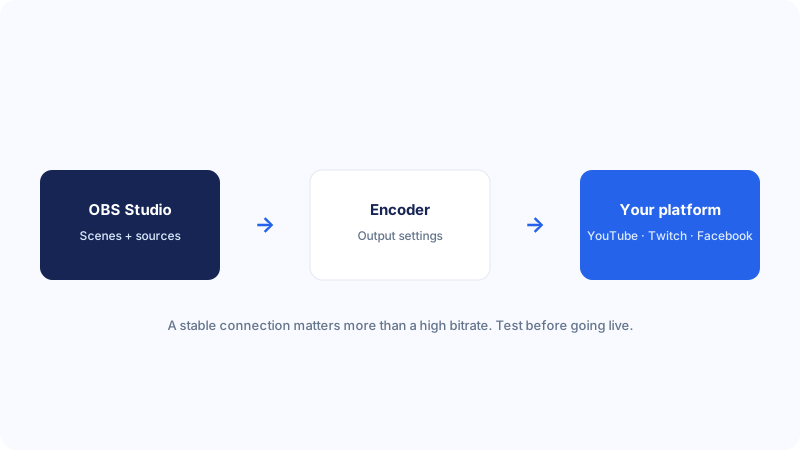
Three different kinds of lag
Rendering lag happens when OBS cannot draw, or render, the scene fast enough. OBS builds each frame from your sources, the game, the camera, the overlays, the browser sources, and if the graphics card is too busy to finish that work before the next frame is due, frames are skipped. The game itself may still feel smooth, because the game and OBS are competing for the same graphics card, and the game may be winning that competition. Rendering lag often appears when the game is demanding, when the scene contains many sources, or when the graphics card is running at its limit. The fix is usually to reduce the work the graphics card must do, either in the game, in the scene, or in OBS video settings.
Does the lag affect the recording, the stream, or both?
Ask this question first, because the answer narrows the search immediately. If a local recording stutters, the cause is in the computer: rendering or encoding. If a local recording is smooth but the live stream stutters, the cause is more likely the network. If both stutter in the same places, the cause is more likely rendering or encoding, because the network cannot affect a file written to your own disk. Make a test recording and a test stream separately, if you can, and compare them. Keep the test recordings short but realistic, several minutes, with the game in a busy area, and label them clearly so you can compare the right files later.
Read the OBS status bar and log
OBS shows the information you need in its status bar at the bottom of the window. Look for the frame rate, the CPU usage, and the dropped-frames figure while you are streaming or recording. A rising dropped-frames percentage during a stream, with no encoding warning, points towards the network. A warning that encoding is overloaded points towards the encoder. A high CPU figure points towards the processor being busy, which may be the game, the encoder, or background programs. The numbers are more useful than the feeling that the video looks laggy, because they separate the causes that look alike on screen.
- Record a five-minute test with your usual scene and game, and note the status-bar figures.
- Stream a five-minute test separately, if you normally stream, and note the dropped-frames figure.
- Open the OBS log after each test and note the rendering, encoding and network figures.
- Compare the recording and the stream: if only the stream lags, suspect the network first.
- Repeat the same test after each change, so the numbers are comparable.
Fix rendering lag from the graphics card
Rendering lag means the graphics card is too busy. The most direct fix is to give it less work. In the game, lower the graphics settings that load the card most, such as shadows, reflections, anti-aliasing, and the rendering resolution, and cap the game frame rate to a value close to the frame rate you are recording or streaming at. A game running uncapped at a very high frame rate will use graphics capacity that OBS needs to render the scene, and capping it often improves the recording without making the game feel much worse. In OBS, lower the output resolution or the frame rate as a test: 720p at 30 frames per second needs far less rendering work than 1080p at 60 frames per second. Try one change at a time, and watch the rendering-lag figure after each one.
A practical example helps. A streamer plays a detailed game at high settings, uncapped, while OBS renders a scene with a browser overlay, a camera, and several animated elements. The stream stutters, and the log shows a high rendering-lag percentage but little encoding lag. Capping the game frame rate and simplifying the scene to a single game capture clears the rendering lag, and the streamer then adds back one overlay at a time to find which one the system can sustain. The game still looks good, because the settings that were lowered were the ones the viewer would notice least, while the stutter the viewer would notice most is gone.
Fix encoding lag and skipped frames
Encoding lag is the encoder falling behind, and its fixes overlap with rendering lag but are not identical. The encoder choice matters: a hardware encoder uses a dedicated part of the graphics card and frees the processor, while the software encoder uses the processor and can overload it when the game is also busy. If you are using the software encoder and seeing skipped frames, try the hardware encoder if one is available on your system, and compare the test results. If you are already using a hardware encoder and still seeing encoding lag, the graphics card may be so busy with the game that it has little capacity left for encoding, and lowering the game settings or the OBS output settings may be needed as well.
Fix network dropped frames while streaming
Network dropped frames are different from rendering and encoding lag, because the video is produced correctly but cannot be sent fast enough. The first step is to check your upload speed, not your download speed, because streaming uses upload. Run a speed test, note the upload figure, and compare it with the bitrate you are using in OBS. If your bitrate is close to, or higher than, your available upload speed, the connection cannot keep up, and you need to lower the bitrate. As a starting point, keep the streaming bitrate well below your measured upload speed, leaving room for the game, chat, and other programs that also use the connection. The exact margin depends on how stable your connection is, so test with a lower bitrate and watch the dropped-frames figure.
- Test your upload speed and note the figure.
- Lower the streaming bitrate to a value well below that upload speed.
- Use a wired connection for the test if you can, and close other upload-heavy programs.
- Stream for five minutes and watch the dropped-frames percentage.
- Only raise the bitrate again in small steps, after the dropped frames have cleared.
Reduce the load from games, scenes and background apps
Whatever the bottleneck, reducing the total load on the computer helps. In the game, lower demanding graphics settings and cap the frame rate. In OBS, simplify the scene: remove browser sources you do not need, reduce the number of animated overlays, and avoid running several high-resolution sources at once. Each source adds work, and a scene that looks simple to the eye can still be demanding if it contains several browser sources that are each running web content in the background. Test with a minimal scene first, and add elements back one at a time, so you know which ones the system can sustain.
A realistic test that proves the fix
A fix is proven only by a test that matches real use. Stream or record for at least ten minutes, using the game or application you normally use, in a busy part of the game, with the programs you normally keep open, at the settings you intend to keep. Watch the status bar throughout, and check the log afterwards for rendering lag, skipped frames, and dropped frames. A test that is too short, too quiet, or too simple will not reveal lag that appears only when the game becomes busy or when the computer warms up. After the test, watch the recording back in full, or check the stream recording, and look for stutter, freezing, and audio that drifts out of sync.
Common mistakes
The most common mistake is treating all lag as a network problem and lowering the bitrate, when the log shows rendering or encoding lag that a bitrate change cannot fix. A second mistake is the opposite: lowering the resolution and frame rate to fix a network problem, when the recording is already smooth and only the stream is affected. A third mistake is testing only in a quiet menu and concluding the setup is stable, when a busy game scene causes lag within minutes. A fourth mistake is changing the resolution, the preset, the bitrate, and the game settings all at once, and not knowing which change helped. A fifth mistake is streaming over Wi-Fi from far away from the router, while other household members use the same connection, and blaming OBS for the dropped frames. A sixth mistake is ignoring the OBS log and relying only on how the video looks, which makes it hard to tell rendering, encoding and network lag apart. Avoiding these mistakes will not make every connection or every computer capable of every setting, because the right settings depend on your hardware and your connection, but it will help you find the stable setup that your system can actually deliver.
Troubleshooting
If the log shows mainly rendering lag, lower the game graphics settings, cap the game frame rate, simplify the scene, and lower the OBS output resolution or frame rate. If the log shows mainly skipped frames from encoding, try the hardware encoder, choose a faster preset, and lower the resolution or frame rate. If the log shows mainly dropped frames while streaming, lower the bitrate, use a wired connection, close upload-heavy programs, and try a closer streaming server. If the local recording is smooth but the stream lags, focus on the network first. If both the recording and the stream lag in the same places, focus on rendering and encoding first. If the lag appears only after several minutes, test with a busy game scene, check for background programs that start later, and consider heat and power settings. If nothing here resolves the lag, keep your notes about the three log figures, the encoder, the resolution, the frame rate, the bitrate, and the connection type, and ask for help on the official OBS help pages, where those details allow a faster answer. For related audio and recording issues, see our guides on fixing OBS no audio and fixing OBS recording problems.
Frequently asked questions
Why does OBS lag but my game feels smooth?
Your game and OBS compete for the same processor and graphics card, and the game may be using most of the capacity, leaving too little for OBS to render and encode the scene. Capping the game frame rate and lowering game graphics settings often frees enough capacity for OBS.
What is the difference between dropped frames and skipped frames?
Dropped frames usually refer to frames lost while sending a stream over the network. Skipped frames usually refer to frames the encoder could not compress in time. The OBS log distinguishes them, and the fix depends on which figure is rising.
Will a higher bitrate fix lag?
No. A higher bitrate adds work for the encoder and needs more upload speed, so it can make both encoding lag and network dropped frames worse. A moderate bitrate that suits your resolution and connection is usually better.
Does Wi-Fi cause dropped frames in OBS?
Wi-Fi can cause dropped frames if the signal is weak, unstable, or shared with other devices using upload bandwidth. A wired Ethernet connection is usually more stable for streaming. If you must use Wi-Fi, move closer to the router and close other upload-heavy programs.
Why does my stream lag but my recording does not?
A smooth local recording with a lagging stream points to the network, because the recording is written to your own disk while the stream must be sent over your connection. Lower the streaming bitrate, use a wired connection, and check for other programs using upload bandwidth.
Conclusion
Lag and dropped frames in OBS have more than one cause, and the fix depends on which cause is active on your system. Read the status bar and the log, and separate rendering lag, encoding lag, and network dropped frames before you change settings. Reduce the load on the graphics card for rendering lag, choose the right encoder and lower the resolution or frame rate for encoding lag, and lower the bitrate and stabilise the connection for network dropped frames. Change one thing at a time, test under realistic conditions for several minutes, and let the numbers in the log decide what is stable. A smooth stream or recording at moderate settings is worth more than a stuttering one at the highest settings, and the stable setup you find by testing is the one your hardware and connection can actually sustain. If the lag persists, your notes about the three log figures and the settings you tested will make any further help much faster. For more streaming detail, see our guides on the best OBS streaming settings and OBS settings for a low-end PC.