
No audio in OBS is a different problem from a black screen, because sound travels through a longer chain. Your voice passes from a microphone into the operating system, into OBS, through filters and the mixer, and then into a recording or a stream. Desktop sound follows a parallel path from an application, through the system audio device, into OBS, and onward to the same output. A break anywhere in either chain produces silence, and the break is often invisible: a muted track, a wrong device, a monitoring setting that sends sound to headphones you are not wearing, or a microphone that Windows has assigned to another application. This guide follows the sound step by step, so you can find the break instead of turning every volume control up at once.
As with every troubleshooting guide on this site, change one thing at a time and test after each change. Audio problems are especially easy to make worse by changing several settings together, because a louder microphone can mask a missing desktop track, and a new audio device can hide the fact that the old one was muted. Keep a short note of each change and its result. The steps below are written for OBS Studio 33.0.1, released October 29, 2026, which is free and open-source software for Windows 10 and 11, macOS 13.0 or newer, and Linux, where support varies by distribution. If you are new to OBS audio, read our OBS audio settings guide alongside this one; it explains the settings this guide asks you to check, and it will help you recognise which values are starting points rather than guarantees, because results depend on your microphone, headphones, system and connection.
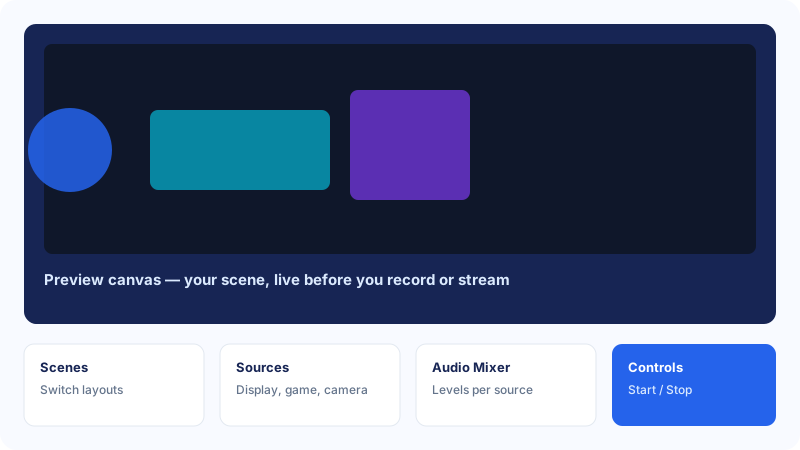
Work out which audio is missing
The first question is not how to fix the audio, but which audio is missing. Open OBS, play some sound on your computer, and speak into your microphone. Watch the Audio Mixer at the bottom of the OBS window. Each source that is producing sound should show a moving green, yellow or red bar. If the microphone meter moves but the desktop meter does not, your microphone path is probably working and the desktop path is broken. If the desktop meter moves but the microphone does not, the reverse is true. If neither meter moves, the problem may be in the global audio settings, the output, or the system devices. If both meters move but your recording or stream is silent, the problem is probably in the output, the audio tracks, or the player you used to check the recording.
Check the sound outside OBS first
Before changing anything in OBS, confirm that sound works on your computer at all. Play a video in a browser or a media player and confirm you can hear it through your speakers or headphones. Open a voice-recorder application and confirm your microphone records your voice there. If sound fails outside OBS too, the fault is in the system, the device, or the cable, and OBS settings will not fix it. If sound works outside OBS but not inside it, the fault is in how OBS is connected to those devices, and the rest of this guide applies. This two-minute check prevents the common experience of rebuilding an OBS scene when the real problem was a muted system volume or a microphone that had been unplugged.
Read the audio mixer correctly
The Audio Mixer is the most useful diagnostic tool in OBS, but it is easy to misread. Each row in the mixer belongs to an audio source, and each row has a volume slider, a mute button, and a small settings menu. A muted source shows a red speaker icon and a flat meter, and it will not be heard in a recording or a stream even if the application producing the sound is loud. A source with its volume slider pulled all the way down will also be silent, even though it is not technically muted. A source that is present in the mixer but hidden in the Sources list can still produce sound, which surprises people who hide a source and expect it to go silent. Conversely, a source that is visible in the scene but has no audio of its own, such as an image source, will not appear as an audio row at all, and looking for it in the mixer will waste time.
- Play desktop audio and speak, and watch each mixer row in turn.
- Unmute any muted row and raise any slider that is at zero.
- Note which rows move and which stay flat, and keep that list for the next sections.
- Make a short test recording after each change, and listen to the whole clip.
Fix microphone problems
When the microphone meter does not move, start with the physical connection. Check that the microphone is plugged in, switched on, and selected as the input device in your operating system. A USB microphone that is plugged into a loose port, a headset whose microphone boom is folded away, or a microphone with a hardware mute switch can all look like an OBS problem when they are not. Try a different USB port if one is available, and try the microphone in another application, such as a voice recorder, to confirm the system can hear it. If the system cannot hear it either, the problem is the microphone, the cable, or the system input setting, and no OBS change will help until that is resolved.
A common microphone example is a streamer who buys a new USB microphone, plugs it in, and finds OBS still uses the old headset microphone. The new microphone works in a voice recorder, but OBS is still pointed at the old device. The fix is to open the Audio Input Capture properties, select the new microphone, and test again. A second example is a user whose microphone works in a call application but not in OBS, because the call application has taken exclusive control of the microphone. Closing the call application, or changing its settings so it does not take exclusive control, often restores the microphone in OBS. In both cases the lesson is the same: confirm which device OBS is actually listening to, rather than assuming it is the one you are speaking into.
Fix desktop and game audio problems
Monitoring, tracks and output settings
Monitoring and audio tracks are the two settings that most often explain the puzzle of meters that move but recordings that are silent. Monitoring controls whether you can hear a source through your own headphones while OBS is running. It does not, by itself, decide whether that source is recorded. If monitoring is set to Monitor Only for a source, you will hear it but it will not be recorded. If it is set to Monitor and Output, you will hear it and it will be recorded. If it is set to Monitor Off, you will not hear it, but it may still be recorded. Confusing monitoring with recording is common, and it leads people to turn monitoring on and off in search of a recording fix that monitoring cannot provide. Check the monitoring setting for each source in Advanced Audio Properties, and set it deliberately rather than leaving it to chance.
- Open Advanced Audio Properties and note the track assignment for each source.
- Assign every source you want to hear to track 1 for a simple test.
- Set monitoring to Monitor Off for sources you do not need to hear, to avoid echo.
- Record a fifteen-second test, play it back, and confirm every source is present.
System devices, drivers and permissions
A clean audio test that proves the fix
A fix is not proven until a test recording contains the sound you expect. Build a clean test scene with one microphone source and one desktop audio source, and nothing else. Speak for five seconds, play desktop audio for five seconds, and then speak over the desktop audio for five seconds. Record the test, play it back in full, and listen for three things: your voice is present and clear, the desktop audio is present, and neither is distorted or drowned out by the other. If all three are true, the basic audio path works, and you can add your usual sources back one at a time. If one element is missing, you know which path to investigate, and you have not wasted time rebuilding a complex scene that contains the same fault.
Common mistakes
The most common mistake is muting a source in the mixer and forgetting it, then searching through system settings for a fault that is a single red speaker icon. A second mistake is setting the microphone volume to maximum to fix a quiet voice, which causes distortion rather than clarity; a moderate level with a small amount of gain is usually better. A third mistake is using two microphone sources at once, a global microphone and a scene microphone, which can double the voice, cause echo, or make it unclear which device is actually in use. A fourth mistake is confusing monitoring with recording, and changing monitoring settings in search of a recording fix. A fifth mistake is testing only by listening live, and never playing back a test recording, so a track problem is missed until after a long stream. A sixth mistake is assuming a new microphone will be selected automatically; OBS keeps the device you chose before, until you change it. Avoiding these mistakes will not fix every audio problem, because some causes depend on the particular combination of hardware and software on your system, but it will make the remaining diagnosis much faster.
Troubleshooting
If no meter moves, check the global audio settings and the system input and output devices first, and confirm sound works outside OBS. If only the microphone is silent, check the physical connection, the device selected in the Audio Input Capture source, and any filters that may be silencing a quiet voice. If only desktop audio is silent, check the application volume, the output device it uses, and whether the desktop or application source points at the device or program that is actually playing. If the meters move but the recording is silent, check the audio track assignments and play the recording in a player that lets you choose the track. If the sound is present but distorted, lower the volume, check for duplicate sources, and disable filters one at a time. If the sound works and then stops after a restart, check whether the system changed its default device, or whether another application is taking exclusive control of the microphone. If nothing here resolves the problem, note the OBS version, operating system, microphone and headphone models, and the exact pattern from your clean test, and ask for help on the official OBS help pages, where those details allow a faster answer. For related performance issues, see our guides on fixing OBS lag and dropped frames and fixing OBS encoding overload.
Frequently asked questions
Why can I hear sound but OBS cannot?
You may be listening through a different output device from the one OBS is monitoring. Confirm which device your system is using for output, and check that the OBS desktop or application audio source points at that same device. Also check that the source is not muted in the mixer.
Why is my microphone not working in OBS but works in other apps?
OBS may be pointed at a different microphone, the microphone may be muted or filtered in OBS, or another application may have exclusive control of it. Check the device in the Audio Input Capture properties, disable filters one at a time, and close other applications that use the microphone.
Why is my OBS recording silent even though the meters move?
The meters show that OBS is receiving sound, but the recording may be using a different audio track from the one your sources are assigned to. Assign all sources to track 1 for a simple test, record again, and play the recording back in full.
What is audio monitoring in OBS?
Monitoring lets you hear a source through your headphones while OBS runs. Monitor Off means you do not hear it, Monitor Only means you hear it but it is not recorded, and Monitor and Output means you hear it and it is recorded. Monitoring does not decide whether a source is captured; it only decides whether you hear it live.
Why does my game audio disappear when I switch windows?
Some games lower or stop their audio when they lose focus. Check the game settings for an option to keep playing sound in the background, and enable it if it exists. This is a property of the game, not a fault in OBS.
Conclusion
No audio in OBS usually has a specific, findable cause: a muted mixer row, a wrong device, a track assignment, a monitoring setting, or a system default that changed without you noticing. Start by identifying which audio is missing, read the mixer carefully, and test with a short recording after each change. Use a clean test scene to prove the basic path works before you rebuild a complex setup, and keep your test recordings until you are confident the fix is stable. Do not assume a single setting will work for every system, because microphones, headphones, drivers and operating systems vary, and a starting point that works for one person may need adjustment for another. If the problem persists, your notes about which meters moved, which tracks you used, and what each test recording contained will make further help much faster. For more audio detail, return to our OBS audio settings guide and our guide to OBS bitrate settings.