
The message encoding overloaded appears in OBS when the encoder cannot keep up with the video it is being asked to compress. The result is usually a recording or stream that stutters, freezes, or drops frames, even though the game itself may feel smooth on your screen. That difference is confusing at first: if the game is running well, why is OBS struggling? The answer is that playing a game and encoding video are two different jobs, and they compete for the same processor, graphics card, and memory. When the total load is too high, the encoder falls behind, OBS warns you, and the output suffers. This guide explains how to find which part of your system is overloaded, and how to reduce the load in the right order, so you can reach a stable setup without sacrificing more quality than you need to.
Work through the steps one at a time, and test after each change with a short recording or a short test stream. Do not lower the resolution, change the encoder, change the preset, and close the game all at once, because you will not know which change made the difference, and you may end up with a setup that is much lower in quality than it needs to be. The advice below is written for OBS Studio 33.0.1, released October 29, 2026, which is free and open-source software for Windows 10 and 11, macOS 13.0 or newer, and Linux, where support varies by distribution. Settings in this guide are starting points, not guarantees: the right resolution, frame rate, bitrate and preset depend on your processor, graphics card, the game you are playing, and your internet connection if you are streaming. If you are new to these settings, our guides to the best OBS recording settings and OBS bitrate settings explain the terms used here.
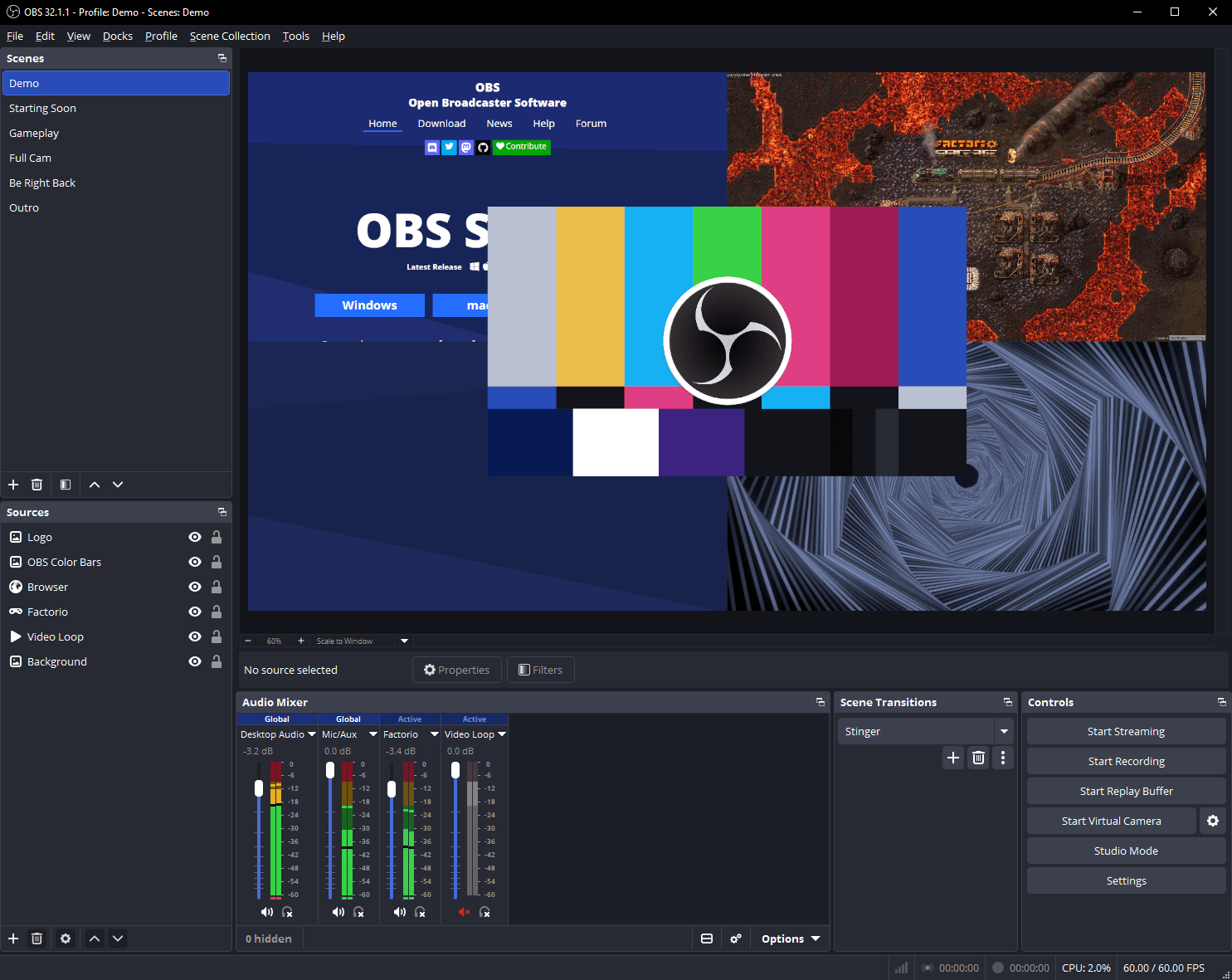
What encoding overloaded means
Encoding is the process of turning the raw pictures OBS captures into a compressed video file or stream. Raw video is far too large to store or send in real time, so the encoder compresses each frame, removes information the eye is less likely to notice, and produces a much smaller stream of data. That compression takes computing power, and the amount of power it needs grows with the resolution, the frame rate, and the quality settings you choose. A 1080p video at 60 frames per second needs substantially more encoding work than a 720p video at 30 frames per second, because there are more pixels in each frame and more frames every second. When the encoder cannot finish compressing one frame before the next one arrives, it falls behind, and OBS reports that it is overloaded.
Why the warning appears suddenly
Encoding overload often appears after something changes: a new game that is more demanding, a higher resolution, a new scene with more sources, a driver update, or a background program that starts using the processor. A setup that was stable for a simple game can become overloaded for a fast-moving, detailed game, because the encoder has to work harder on scenes with more movement and detail. Similarly, a setup that works when OBS is the only program running can become overloaded when a browser with many tabs, a chat application, and a game are all running at once. When the warning appears, ask what changed since the setup last worked, and test that change first.
Check whether the CPU or GPU is overloaded
Before changing OBS settings, find out which part of your computer is busy. Open your system task manager or activity monitor while OBS is recording or streaming, and look at the processor and graphics-card usage. If the processor is near its maximum while the graphics card has spare capacity, the encoder is probably using the processor, and the processor is the bottleneck. If the graphics card is near its maximum while the processor has spare capacity, the graphics card may be the bottleneck, and the problem may be rendering rather than encoding, or it may be that the graphics card is busy with the game and has little capacity left for the encoder. If both are near maximum, the whole system is overloaded, and you will need to reduce the load from both the game and OBS.
- Start a short test recording with your usual scene and game.
- Watch processor and graphics-card usage in the system monitor.
- Note the OBS status-bar figures and any encoding-overload warning.
- Stop the recording, check the OBS log for skipped-frame information, and write the numbers down.
- Repeat the same test after each settings change, so you can compare like with like.
Choose the right encoder for your hardware
OBS offers different encoders, and the right choice depends on your hardware. The software encoder, usually called x264, uses the processor to compress video. It can produce good quality, but it adds a substantial load to the processor, and on a computer that is already busy running a game, that load can be enough to cause overload. Hardware encoders use a dedicated part of the graphics card to compress video, which frees the processor for the game and other programs. On many systems a hardware encoder is the better choice for streaming or recording while gaming, because it leaves the processor free. On a system with a powerful processor and a weaker graphics card, or on a system where you are recording a simple screen rather than a demanding game, the software encoder may still be appropriate. There is no single encoder that is best for every computer, and the right answer depends on the hardware you actually have.
A practical example: a user with a mid-range computer streams a demanding game at 1080p and 60 frames per second using the software encoder, and sees encoding overloaded within a minute. Switching to the hardware encoder, with the same resolution and frame rate, removes the warning, because the processor is no longer doing the encoding work. In a second example, a user recording a slide presentation uses the software encoder at 1080p and 30 frames per second with no problem, because the processor has plenty of spare capacity and the scene changes slowly. Both users made the right choice for their hardware and their content, and neither choice would have been right for the other. Test on your own system, and let the numbers decide.
Lower resolution and frame rate first
Adjust bitrate, preset and quality settings
Bitrate controls how much data the encoder is allowed to use each second. A higher bitrate can improve quality, but it also increases the work the encoder must do and, for streaming, the amount of data your connection must send. If you are recording, a very high bitrate may not be necessary for the content you are making, and lowering it can reduce the load. If you are streaming, a bitrate that is too high for your upload speed will cause dropped frames for a different reason, so the bitrate must suit both the encoder and the connection. Use the bitrate guidance in our OBS bitrate settings guide as a starting point, and adjust it in small steps, testing after each change. Do not set the bitrate to the maximum available in the hope that it will improve quality; beyond a certain point, extra bitrate gives little visible improvement and adds load.
- Lower the output resolution by one step and test.
- Lower the frame rate from 60 to 30 and test.
- Choose a faster encoder preset and test.
- Adjust the bitrate to a moderate starting point and test.
- Only raise settings again one at a time, after the overload warning has cleared.
Reduce the load from games and other programs
A stable test that proves the fix
A fix is proven only by a test that matches the conditions you will actually use. Record or stream for at least five minutes with the game or application you normally use, at the settings you intend to keep, and watch for the encoding-overloaded warning throughout. A test of ten seconds is not enough, because the encoder may cope for a short burst and fall behind only when the game becomes busy, for example during a fast-moving scene or a crowded area. Use a demanding part of the game for the test, not a quiet menu screen, and keep the other programs you normally use open, so the test reflects real conditions. After the test, watch the recording back in full, or check the stream recording, and look for stutter, freezing, or audio that drifts out of sync.
Common mistakes
The most common mistake is setting the resolution and frame rate to the highest values available, on the assumption that higher is always better, without checking whether the encoder can sustain them. A second mistake is using the software encoder on a computer whose processor is already busy with a demanding game, when a hardware encoder would free the processor. A third mistake is changing the resolution, the preset, the bitrate and the game settings all at once, and then not knowing which change mattered. A fourth mistake is testing only with a quiet menu screen, and concluding the setup is stable, when a busy game scene overloads it within minutes. A fifth mistake is ignoring background programs, and blaming OBS for a load that is actually caused by a browser, a sync service, or an update. A sixth mistake is raising the bitrate to fix a stutter that is caused by encoding overload; a higher bitrate adds work, and it can make the overload worse. Avoiding these mistakes will not make every computer capable of every setting, because the right settings depend on the hardware you have, but it will help you find the best stable setup that hardware can actually deliver.
Troubleshooting
If the warning appears immediately, lower the output resolution and frame rate first, and try the hardware encoder if one is available. If the warning appears only after several minutes, test with a demanding part of the game, check for background programs that start later, and consider whether the computer is heating up and slowing down, in which case improving airflow or cleaning dust from vents may help, although that is a hardware matter beyond OBS settings. If the warning appears only when you stream and record at the same time, test with only one of them, and keep the second off until the first is stable. If the warning appears after a driver or system update, check whether the encoder list has changed, and try the other encoder as a comparison. If the recording stutters but there is no encoding-overloaded warning, the cause may be rendering lag or network dropped frames instead, and our guide to fixing OBS lag and dropped frames is the right next step. If nothing here clears the warning, keep your notes about the encoder, resolution, frame rate, preset, bitrate, and the numbers from your tests, and ask for help on the official OBS help pages, where those details allow a faster answer.
Frequently asked questions
What does encoding overloaded mean in OBS?
It means the encoder cannot compress video fast enough for the resolution, frame rate and quality settings you have chosen. The encoder falls behind, and the recording or stream stutters or drops frames. Lowering the load, usually by reducing resolution or frame rate, or by choosing a different encoder, is the usual fix.
Should I use the hardware or software encoder?
It depends on your hardware. A hardware encoder uses a dedicated part of the graphics card and frees the processor, which often helps while gaming. The software encoder uses the processor and can be a good choice when the processor has spare capacity. Test both on your own system and compare the skipped-frame figures.
Will lowering the resolution fix encoding overload?
Often, yes, because fewer pixels per frame means less work for the encoder. Try 720p as a test if you are currently at 1080p, and lower the frame rate from 60 to 30 as a separate test. A smooth lower-resolution recording is usually more watchable than a stuttering higher-resolution one.
Does a higher bitrate cause encoding overload?
A very high bitrate can add encoding work, and for streaming it can also exceed what your connection can send. A moderate bitrate that suits your resolution and connection is usually better than the maximum available. Use our bitrate guide as a starting point and test in small steps.
Why does encoding overload happen only in some games?
Different games place different loads on the processor and graphics card, and fast-moving, detailed games need more encoding work than simple scenes. A setup that is stable for one game may overload for another, so test with the game you actually intend to record or stream.
Conclusion
Encoding overloaded is a message about load, not a verdict on OBS or on your computer. It means the encoder is being asked to do more work than it can finish in time, and the fix is to reduce that work until the encoder can keep up. Find out whether the processor or the graphics card is busy, choose the encoder that suits your hardware, lower the resolution and frame rate first, and then adjust the preset and bitrate in small steps. Reduce the load from the game and from background programs, and prove the fix with a realistic test of several minutes, not a ten-second clip of a menu screen. The stable settings you find may be lower than the maximum values on offer, but a smooth recording at those settings is worth more than a stuttering recording at higher ones. If the warning persists, your notes about the encoder, the settings, and the test numbers will make any further help much faster. For related settings, see our guides on OBS settings for a low-end PC and OBS live streaming setup.