INDEPENDENT OBS STUDIO RESOURCE

OBS Descargar
OBS Studio Free Download & Setup Guide

Latest release listed by OBS Project33.0.1, October 29, 2026

OBS Descargar helps you get OBS Studio, the free screen recording and live streaming software. Download the Windows installer directly, explore OBS Studio for Mac and Linux, and follow practical recording, streaming and setup guides.

Version 33.0.1, Released October 29, 2026, Windows installer 178.0 MB, Direct files from official OBS Project distribution channels. Linux packages vary by distribution.

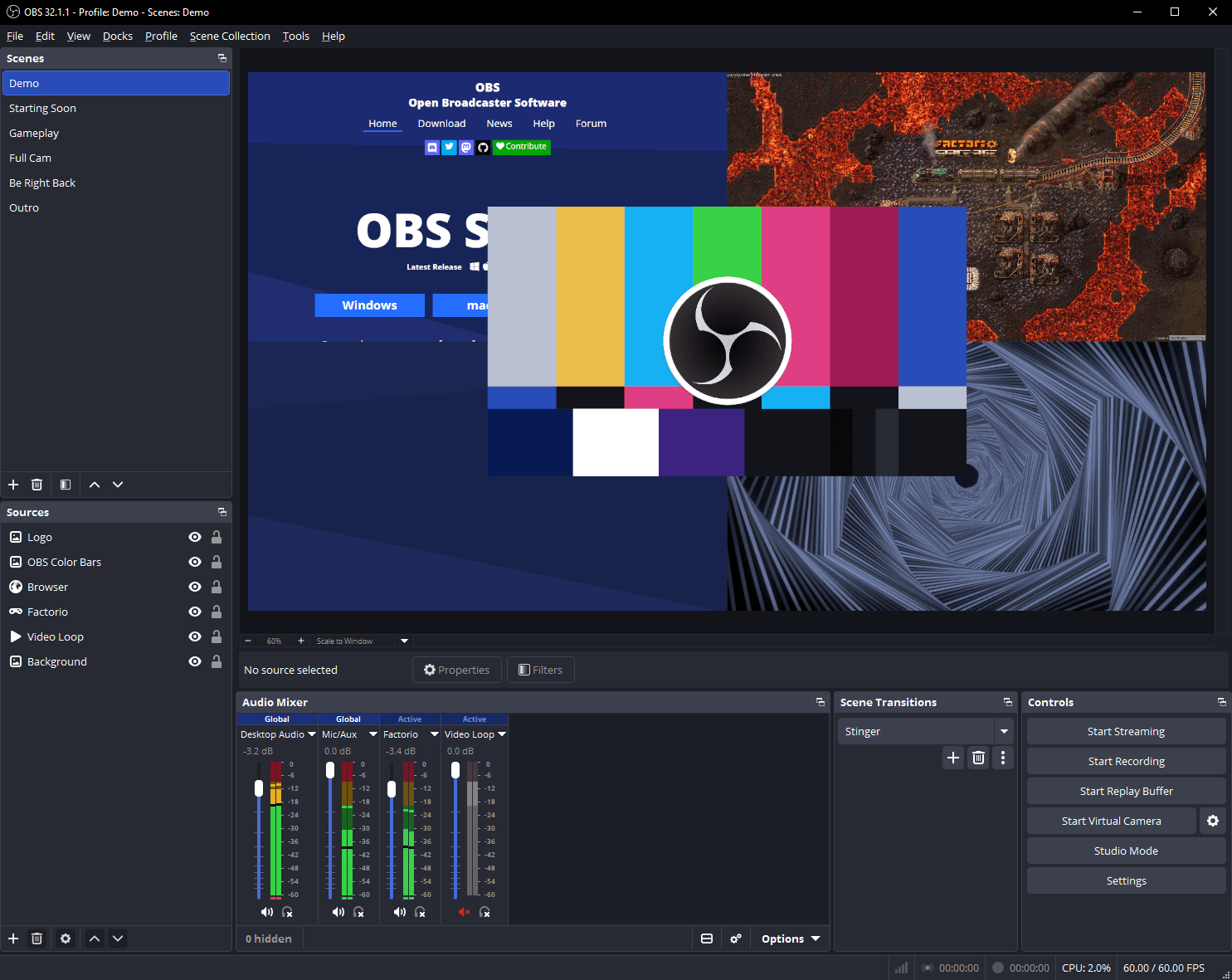
OBS Studio interface showing scenes, sources, audio mixer, preview and recording controls
OBS Studio interface, Image source: OBS Project
✓ Free & open source
▣ Windows, macOS & Linux
◉ Screen recording
⌁ Live streaming
Official download options

Choose OBS Studio for your operating system

Looking for an OBS Studio download? Choose Windows, macOS or Linux. Windows users can download the official OBS installer directly; Mac and Linux users can continue to the official platform-specific download instructions.

⊞

OBS Studio for Windows

Choose the installer that matches your Windows computer's processor architecture.

Download Windows x64 (.exe) ↓ Download Windows ARM64 (.zip) ↓

Windows x64 installer: 178.0 MB, Windows ARM64.zip (portable build, not an installer): 190.9 MB. Direct files from the OBS Project CDN / official GitHub release. Check your system type before downloading.

⌘

OBS Studio for macOS

Select the correct disk image for your Mac processor.

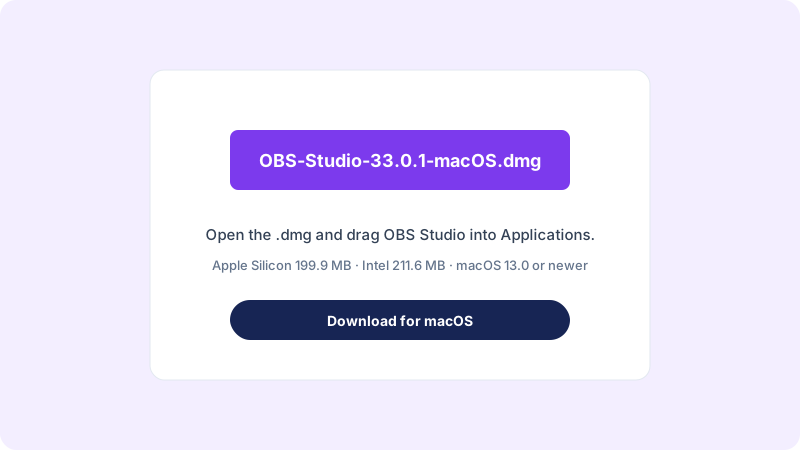
Apple Silicon (.dmg) ↓ Intel Mac (.dmg) ↓

Apple Silicon.dmg: 199.9 MB, Intel.dmg: 211.6 MB. Direct official GitHub release files. macOS 13.0 or newer is listed by OBS Project.

🐧

OBS Studio for Linux

Linux packages depend on your distribution. A direct Ubuntu package is available for the supported release shown here.

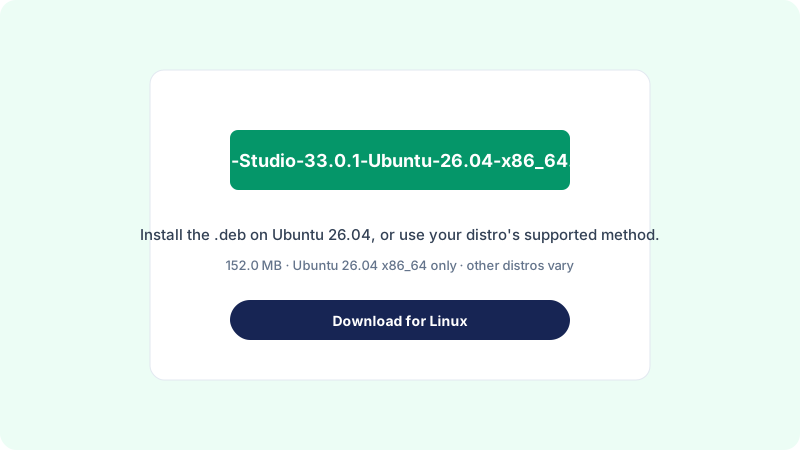
Ubuntu 26.04 x64 (.deb) ↓

Ubuntu 26.04 x86_64.deb: 152.0 MB. For other Linux distributions, use the package manager or installation method supported by your distribution.

The.deb is a direct file download for Ubuntu 26.04 x86_64 only. Flathub opens the installation page, not a standalone file.

Direct OBS Studio installer downloads

Each download button above points to a specific installer or package file. The Windows x64 installer is served from the OBS Project CDN. macOS and Ubuntu release files are served from the official OBS Studio GitHub release.

Version: 33.0.1, Release date: October 29, 2026

Safety: We do not rehost, modify or bundle OBS installers. Always verify the file and compatibility for your operating system.

Download OBS Studio for Windows ↓
FileSizeDownload
OBS-Studio-33.0.1-Windows-x64-Installer.exe178.0 MBDownload ↓
OBS-Studio-33.0.1-Windows-arm64.zip (portable build, not an installer)190.9 MBDownload ↓
OBS-Studio-33.0.1-macOS-Apple.dmg199.9 MBDownload ↓
OBS-Studio-33.0.1-macOS-Intel.dmg211.6 MBDownload ↓
OBS-Studio-33.0.1-Ubuntu-26.04-x86_64.deb152.0 MBDownload ↓

All files verified November 7, 2026, see the Download Safety page and the verification report in the download package. OBS does not publish SHA-256 checksums for release 33.0.1, so none are shown here. Version and compatibility details can change; always confirm the latest information on the official OBS download page ↗.

About the software

What is OBS Studio?

OBS Studio is free and open-source screen recording and live streaming software used to capture, mix, record and stream video. It lets creators combine sources such as displays, application windows, games, webcams, images, text and audio into scenes for a recording or live production.

It is used by streamers, educators, presenters, podcasters and people who need flexible desktop recording tools. Its workflow is built around scenes, sources, audio controls, transitions and output settings.

  • Build scenes from multiple visual and audio sources.
  • Record video locally or send a live stream to a supported service.
  • Customize audio, video, transitions, hotkeys and layout.
  • Extend functionality with compatible plugins and scripts.
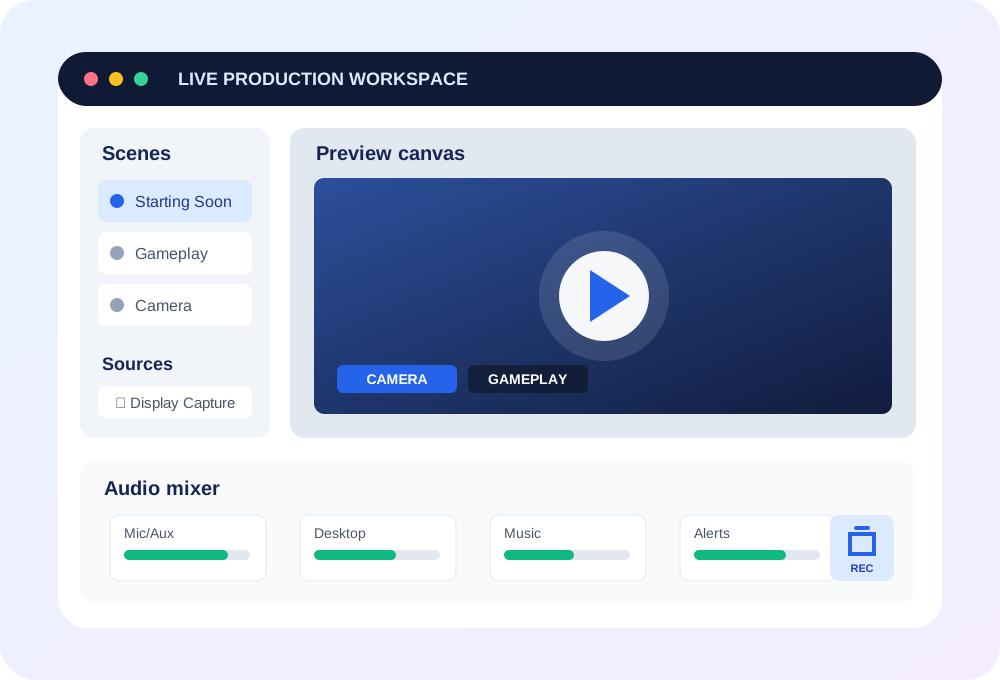
Illustration of an OBS production workflow connecting scenes, sources, audio mixing and recording output
What you can do

Explore OBS Studio features

Understand the core tools that make OBS useful for recording, streaming and building multi-source video productions.

▣

Real-time capture and mixing

Combine screen, window, game, camera and audio sources in a single production layout.

▤

Scenes and transitions

Arrange different source layouts as scenes and switch between them using transitions.

♫

Audio mixer

Monitor audio levels and configure per-source controls and supported filters.

⚙

Flexible configuration

Adjust recording, streaming, video, audio and other settings to suit your workflow.

▣

Studio Mode

Preview and prepare a scene before sending it to the live output.

+

Plugins and scripts

Extend OBS with compatible community plugins and scripts from trusted sources.

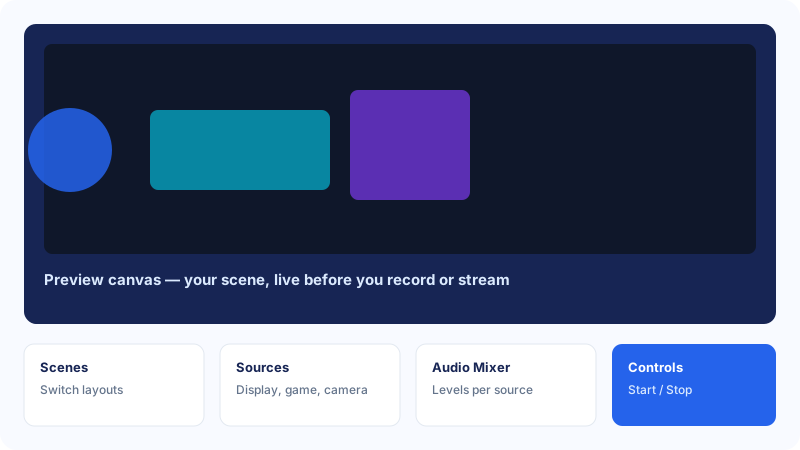
Illustration of the OBS Studio interface: preview canvas, scenes, sources, audio mixer and controls
Original illustration of the OBS Studio workspace layout, not a screenshot.
Know your workspace

Inside the OBS Studio interface

The OBS workspace is made up of docks that help you control a production. The exact layout can be rearranged, so panels may appear in different positions depending on your setup.

  • Scenes: switch between prepared layouts.
  • Sources: add displays, windows, cameras, images and more.
  • Audio Mixer: monitor and adjust audio sources.
  • Scene Transitions: control how scenes change.
  • Controls: start or stop streaming and recording, and open settings.
OBS for Windows

OBS Studio for Windows

OBS Studio for Windows is the most common way to download OBS Studio. The Windows x64 installer (178.0 MB) runs on Windows 10 and Windows 11. A Windows ARM64 build is also available as a.zip portable build (190.9 MB), it is not an installer, so you extract it and run OBS Studio from the extracted folder.

  • Download the installer that matches your processor: x64 for most PCs, ARM64 only for ARM-based Windows devices.
  • Run the installer and follow the setup wizard.
  • On first launch, review the auto-configuration wizard and test a short recording.
 Windows download page → Windows download guide →
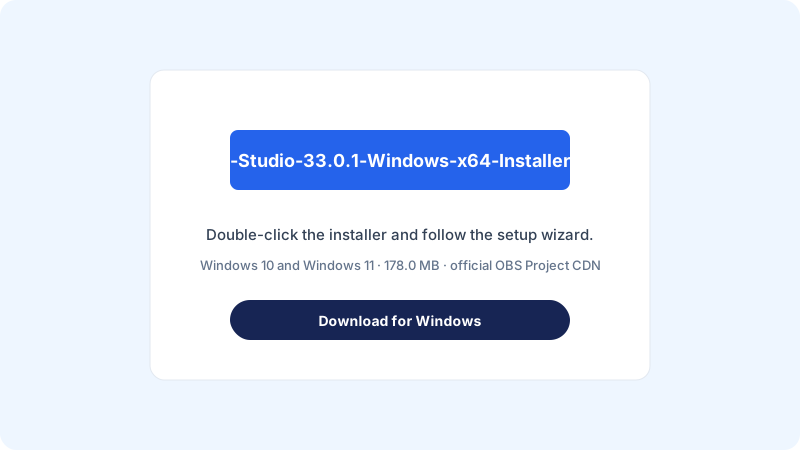
Illustration of the OBS Studio Windows installer download for OBS Descargar

Original illustration, not a screenshot of the installer.

Illustration of the OBS Studio macOS disk image download for OBS Descargar

Original illustration, not a screenshot of the installer.

OBS for Mac

OBS Studio for macOS

OBS Studio for Mac comes in two builds: Apple Silicon (199.9 MB) for M-series Macs and Intel (211.6 MB) for Intel Macs. OBS Project lists macOS 13.0 or newer. Open the.dmg, drag OBS Studio into Applications, then open it from Launchpad, macOS may ask you to confirm opening an app downloaded from the internet.

  • Check whether your Mac uses Apple Silicon or Intel before downloading.
  • Install from the.dmg into Applications.
  • Grant screen-recording and microphone permissions only when OBS asks for them.
 macOS download page → Mac download guide →
OBS for Linux

OBS Studio for Linux

OBS Studio for Linux has no single installer for every distribution. The direct package on this site is the Ubuntu 26.04 x86_64.deb (152.0 MB), for that release only. Other distributions should use their supported package manager or the Flathub installation page, Flathub opens an installation page, not a standalone file download.

  • Ubuntu 26.04 x86_64: download the.deb and install it with your package installer.
  • Other distributions: follow the official OBS instructions for your distribution.
  • Check graphics drivers and permissions if capture does not work after install.
 Linux download page → Linux install guide →
Illustration of the OBS Studio Ubuntu Linux package download for OBS Descargar

Original illustration, not a screenshot of the installer.

Before installing

OBS Studio system requirements

OBS performance depends on the operating system, capture resolution, frame rate, encoder, scenes and workload. Check the official requirements before choosing settings.

Operating system

Confirm the supported Windows, macOS or Linux version on the current OBS download and help pages.

Processor and graphics

Encoding and real-time compositing can be demanding. Hardware encoder availability and GPU drivers matter.

Memory and storage

Allow sufficient memory for OBS and other running applications. Recording files require free disk space.

We do not publish one universal minimum hardware specification because actual performance depends on the production workload and supported encoders.

Getting started

How to install OBS Studio

Use this general checklist, then follow the platform-specific instructions for your operating system.

Open the official download page

Go directly to obsproject.com/download and select your operating system.

Choose the correct build

Check the operating system, processor architecture and available installer options.

Download from the official source

Do not use repackaged installers or download mirrors you cannot verify.

Run the installer or package setup

Follow the installation prompts or the official Linux distribution instructions.

Open OBS Studio

Review the first-run setup and grant only the permissions needed for your workflow.

Test a short recording

Check your display capture, microphone, audio levels and output folder before a long session.

Recording tutorial

Record your screen with OBS Studio

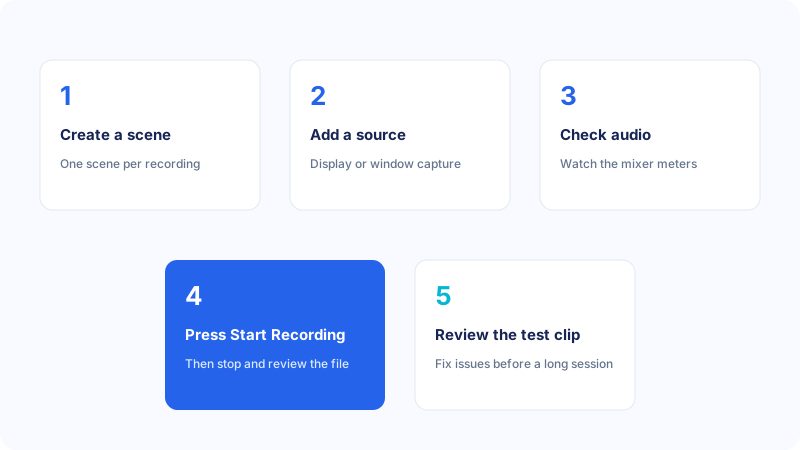
For a basic screen recording, create a scene, add the appropriate display or window capture source, check your audio devices and choose a recording format and location in Output settings.

  • Create a new scene for the recording.
  • Add a display or window capture source.
  • Check microphone and desktop audio meters.
  • Choose a suitable recording path and format.
  • Make a short test recording and review the result.
Explore recording guides
Illustration of the five steps to record your screen with OBS Studio
Original illustration, five steps from scene to test recording.
Illustration showing OBS Studio sending an encoded stream to a live streaming platform
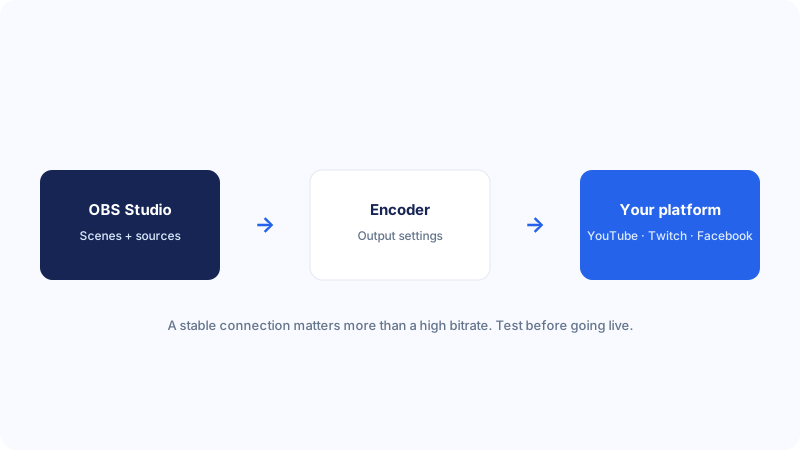
Original illustration, OBS Studio, encoder, and streaming platform.
Live production

Prepare OBS for live streaming

Streaming requires a supported destination, a stable connection and output settings suited to your hardware and platform. Add and test your sources before going live.

  • Choose a streaming service or supported custom server.
  • Connect using the service's current setup instructions.
  • Configure encoder, resolution and bitrate carefully.
  • Check microphone, desktop audio and scene transitions.
  • Run a private or test stream before broadcasting publicly.
Explore streaming guides
Configuration

Understand the main OBS settings

Start with a stable configuration, test changes one at a time and adjust based on the result you need.

▣

Video

Set canvas resolution, output resolution and frame rate based on your content and system capability.

♫

Audio

Choose devices, sample rate and channel options, then test for clipping and unwanted noise.

◉

Output

Configure recording paths, formats, encoders and streaming output options.

⌨

Hotkeys

Set keyboard shortcuts for common actions such as switching scenes and starting recordings.

⚙

Advanced

Review advanced options only when you understand how they affect your workflow.

▤

Profiles and scene collections

Keep separate configurations and scene layouts for different recording or streaming projects.

Extend your workflow

OBS plugins and extensions

Plugins and scripts can add functionality to OBS, but they are third-party components and may have their own compatibility, maintenance and security considerations.

  • Check the plugin's source and maintainer.
  • Confirm compatibility with your OBS version and operating system.
  • Read installation instructions before changing application files.
  • Back up important profiles and scene collections.
  • Remove plugins that are outdated or no longer needed.
Visit OBS community forum ↗
PLUGIN CHECKLIST

Before installing an extension

  • Trusted publisher
  • Version compatibility
  • Recent maintenance
  • Clear installation guide
  • Backup available
Fix common problems

OBS Studio troubleshooting center

Start with the symptom, check the relevant source or setting, and change one thing at a time so you can identify the cause.

Black screen capture

Check the selected capture source, application permissions, GPU configuration and capture method.

No microphone audio

Verify the selected input device, mute state, operating-system permissions and audio meters.

Encoding overloaded

Reduce output load, check encoder settings and review CPU or GPU utilization.

Lag and dropped frames

Separate network-related dropped frames from rendering or encoding lag before troubleshooting.

OBS will not open

Check recent changes, plugins, system compatibility and official support resources.

Recording problems

Check the output path, free disk space, file format, permissions and encoder status.

Release information

OBS news and version updates

Check the official project channels for current release announcements, hotfixes, compatibility changes and release notes.

LATEST RELEASE

OBS Studio 33.0.1

The official OBS homepage lists version 33.0.1, released October 29, 2026. Confirm the current version before publishing or updating this page.

Read official release notes ↗
SOURCE CODE

OBS Studio on GitHub

Explore the source repository, issue tracker, development information and project activity.

Open GitHub ↗
HELP & COMMUNITY

Official OBS support

Use official help resources and community channels when a problem requires project-specific support.

Get official help ↗

Download safely from the official OBS Project

OBS Descargar is an independent information website. We do not host, modify, bundle or redistribute OBS installers.

Go to Homepage
Quick answers

Frequently asked questions

Short answers to common questions about OBS Studio downloads, setup and use.

Is OBS Studio free?

Yes. OBS Studio is free and open-source software distributed under the GNU General Public License v2 or later. Review the project repository for licensing details.

Is OBS Studio safe to download?

The safest option is to download OBS directly from the official OBS Project website. Avoid modified installers and untrusted download mirrors.

Does OBS Studio work on Windows 11?

Yes. The OBS Project download page lists Windows 10 and Windows 11 support. Check the official page for current requirements.

Can I use OBS without live streaming?

Yes. OBS can be used for local video recording without broadcasting a live stream.

Does OBS Studio support macOS?

Yes. OBS provides macOS builds. Check the current minimum macOS version and select the correct Apple Silicon or Intel build when applicable.

Is OBS Studio available for Linux?

Yes. OBS is available for Linux through supported distribution and package methods. Follow the official instructions for your distribution.

Can OBS record gameplay?

Yes. OBS can capture games using supported capture sources. The best method depends on the game, operating system and graphics configuration.

Where should I download OBS Studio?

Use the official download page at obsproject.com/download. This website links to that official destination and does not host installers.