Installing OBS Studio on Linux depends on which distribution you run, because Linux has no single installer that fits every system. This guide covers the current release, OBS Studio 33.0.1, released on October 29, 2026, and explains the three supported routes: the official.deb package for Ubuntu 26.04 on x86_64, your distribution's own package manager, and the Flathub install page. OBS Studio is free and open-source software under the GPLv2 licence or later, so there is no payment, licence key, or account to create on any of these routes. Read Section 1 first, because choosing the right route for your distribution saves the most common wasted effort.
Before you install on Linux
First, find out which Linux distribution and version you run, and whether your processor is x86_64. On Ubuntu and most distributions, the Settings application shows the version under About, and the system details page lists the processor. The official.deb package in this guide is built for Ubuntu 26.04 on x86_64 only, so it is the right file only if both of those match your system. If you run a different distribution, a different Ubuntu version, or a different processor architecture, use your distribution's package manager or Flathub instead, as Sections 3 and 4 explain.
Next, check the practical details. Make sure you have a few hundred megabytes free for the application, and much more free space for recordings, since video files grow quickly. You will need permission to install software, which on most desktop Linux systems means your user password when the installer or package manager asks. Close applications that use your camera or microphone, such as video calling apps, and save any open work. It is also worth updating your system first through your distribution's normal update process, since updates can fix display and driver problems that would otherwise look like OBS Studio faults. OBS Studio's needs depend on what you record and which encoder you use, so there is no single minimum specification to quote; the official OBS Project pages are the place to check requirements for your workload.
Installing on Ubuntu 26.04 with the.deb package
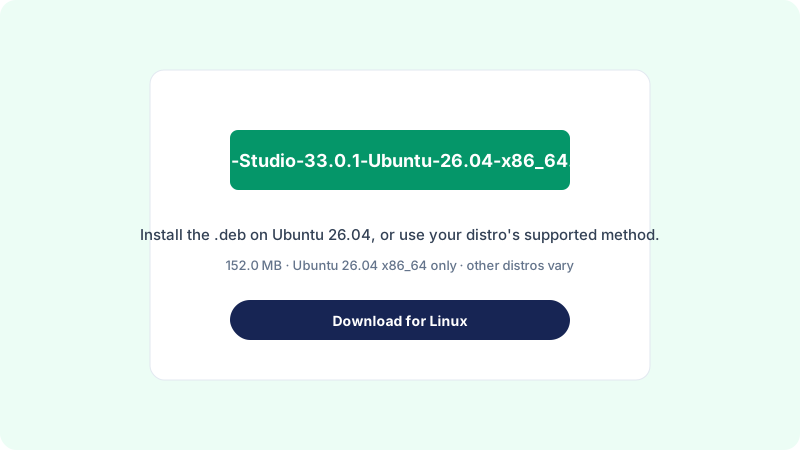
If you run Ubuntu 26.04 on x86_64, the simplest route is the official.deb package: OBS-Studio-33.0.1-Ubuntu-26.04-x86_64.deb, at 152.0 MB. You can download it from the official GitHub releases page at the link below, or from the official OBS Project download page at obsproject.com/download. OBS Descargar is an independent guide site, not the official OBS Project site, and this link goes straight to the official file.
Download OBS Studio 33.0.1 for Ubuntu 26.04 x86_64 (.deb, 152.0 MB)
After downloading, check the file name and size: a file much smaller than 152.0 MB is incomplete and should be deleted and downloaded again. Then install it with your usual software installer by opening the file, or with your distribution's package manager. One common method is to open a terminal in the folder containing the file and install it with the package manager, entering your password when asked. The installer resolves the package's dependencies as part of the process, so let it finish before opening OBS Studio. When it completes, OBS Studio appears in your applications menu, ready to launch. Remember this package is for Ubuntu 26.04 x86_64 only; do not try to install it on another Ubuntu version or another distribution and expect it to work.
Installing on other Linux distributions
If you do not run Ubuntu 26.04, use your distribution's supported package manager instead of the.deb file. Most distributions include OBS Studio in their own software repositories, and installing from there is the route the distribution supports: the package is built for your system, updates arrive through the normal update process, and dependencies are handled for you. Open your distribution's software centre or package manager, search for OBS Studio, and install it from the official repository listing. Alternatively, use your distribution's command-line package manager to install the obs-studio package from the repositories.
The exact steps differ between distributions, because each one has its own software centre and package names, but the pattern is the same: search the official repositories, install, and let the package manager resolve dependencies. Avoid downloading.deb or.rpm files built for other distributions and forcing them onto yours, since that is the fastest way to a broken installation with missing libraries. If your distribution's repositories offer an older version of OBS Studio, that is a trade-off to be aware of: the packaged version is tested for your system, while the newest release may only be available through Flathub, covered in the next section. Check the version after installing, shown in the Help menu under About, so you know what you have.
Installing OBS Studio from Flathub
Flathub is a store for Flatpak applications, and OBS Studio is available there. The Flathub page for OBS Studio is a landing and install page at flathub.org/apps/com.obsproject.Studio; it is not a direct download file, so do not expect a download button that saves an installer to your computer. Instead, the page offers installation through Flatpak, which is how Flatpak applications are delivered on Linux.
To use this route, your system needs Flatpak set up with the Flathub repository added, which many distributions already include or offer through their software centre. Open the Flathub page for OBS Studio, follow the install option it presents for your system, and let your software centre or Flatpak handle the installation. A Flatpak install is sandboxed, which means it runs with limited access to the rest of your system by default; if OBS Studio installed this way cannot see a camera, microphone, or folder, check the Flatpak permissions for the application in your software centre or permissions tool. This route is useful when your distribution's repositories are out of date or do not include OBS Studio, and it keeps updates coming through Flatpak rather than the system package manager.
First launch and the setup wizard
When you open OBS Studio for the first time, it offers an auto-configuration wizard. The wizard asks whether you mainly want to stream or record, then tests your hardware and suggests settings. Accept its suggestions for now; they are starting points, not final answers, because the best settings depend on your hardware, encoder, and connection. The wizard cannot know whether you will record fast-moving games, quiet slide presentations, or camera footage. If you only want to record, choose the recording option; streaming can be set up later without reinstalling anything.
After the wizard, the main window opens, with panels for scenes, sources, audio, and controls, and a large preview in the centre showing what a recording would capture. Nothing is recording or streaming yet, and nothing starts until you press a button, so take a minute to look around. If your desktop environment asks whether OBS Studio may use your camera or microphone, allow access for the devices you plan to use. On Linux, camera and microphone access is usually handled by the system and the application together; if a device does not appear, check that no other application is using it and that it works in another program first.
Your first scene and test recording
A scene is a layout built from sources, and your first one can be simple. A default scene already exists in the Scenes panel. In the Sources panel, click the plus button and add a Screen Capture source for the whole display, or a Window Capture source for one application. Name it clearly, such as "Main screen", so you can recognise it later. Add an Audio Input Capture source for your microphone, speak a few words, and watch the audio meters move. If a meter stays flat, that source is not hearing anything yet, and you should check the device selection before recording.
Now prove it works with a short test. For example, a creator recording a tutorial might open the application they want to demonstrate, click Start Recording, talk through it for about thirty seconds, then click Stop Recording. Open the file from the File menu by choosing Show Recordings, and watch it through. Check the picture is sharp, the sound is clear, and nothing important is cut off at the edges. If something is wrong, change one setting at a time and test again. Once the test looks good, read our guide to how to use OBS Studio and our guide to recording your screen with OBS for the next steps.
Updating and uninstalling on Linux
How you update depends on how you installed. If you used the Ubuntu.deb package, download the new.deb from the official source and install it over the existing installation; your scenes, sources, and settings are kept. If you installed from your distribution's repositories, updates arrive through the normal system update process. If you installed from Flathub, updates arrive through Flatpak. Before a major update on any route, back up your profiles and scene collections from within OBS Studio so you can restore your setup if anything goes wrong.
To remove OBS Studio, use the same tool you installed it with: your distribution's package manager or software centre for a repository install, or Flatpak for a Flathub install. Uninstalling removes the program, not your recordings, which are separate files in your recordings folder. Your settings may remain in your home directory after uninstalling; delete them only if you are sure you will not reinstall, since removing them erases your scenes and sources. If you installed the wrong package for your distribution, remove it cleanly with the package manager before trying a different route, rather than installing a second copy alongside it.
Common mistakes
The most common mistake is installing the Ubuntu 26.04.deb on a different distribution or Ubuntu version. The package is built for Ubuntu 26.04 x86_64 only, and forcing it elsewhere leads to missing dependencies and a broken install. Use your distribution's package manager or Flathub instead. A second common mistake is treating the Flathub page as a direct download: it is a landing and install page, not a file, and there is no installer to save from it.
People also run into trouble by installing from a random.deb or script found in a forum or video description. Only use the official.deb from the OBS Project releases, your distribution's own repositories, or Flathub. A further mistake is testing with a long, important recording before making a short test first; a thirty-second test reveals problems while they are still cheap to fix. Finally, do not change several settings at once after a bad test recording. Change one thing, test again, and you will know what fixed it.
Troubleshooting
If the.deb file will not install, check the file first: the name should be OBS-Studio-33.0.1-Ubuntu-26.04-x86_64.deb and the size about 152.0 MB, and your system should be Ubuntu 26.04 on x86_64. A much smaller file is an incomplete download; delete it and download again. If the package manager reports missing dependencies, let it resolve them through the normal process rather than downloading library files by hand.
If OBS Studio installs but will not open, try launching it from a terminal to see any error message it prints, and note the message before searching for help; a vague "it doesn't work" is hard for anyone to help with, while an exact error message points to the cause. If it opens but a capture is black, close other apps using the camera or display, check the device is not in use elsewhere, and try a Window Capture source instead of Screen Capture to narrow the problem down.
If a test recording has no sound, watch the audio meters while you speak, confirm the right microphone is selected, and check that desktop audio is not muted. On a Flatpak install, also check the Flatpak permissions for OBS Studio, since the sandbox can block access to devices and folders. If problems persist, read our guide to fixing OBS Studio when it will not open before reinstalling, because a reinstall rarely fixes what a permission or settings change would solve.
Frequently asked questions
Is OBS Studio free to install on Linux?
Yes. OBS Studio is free and open-source software under the GPLv2 licence or later. There is no payment, licence key, or paid edition on any installation route: the.deb package, your distribution's repositories, and Flathub.
Can I install the Ubuntu.deb on another distribution?
No. The.deb package, OBS-Studio-33.0.1-Ubuntu-26.04-x86_64.deb, is built for Ubuntu 26.04 on x86_64 only. Other distributions should use their own package manager or the Flathub install page instead.
Is Flathub a download file?
No. The Flathub page for OBS Studio is a landing and install page, not a direct file. It offers installation through Flatpak, which your software centre or Flatpak handles; there is no installer file to save from it.
How do I update OBS Studio on Linux?
It depends on how you installed it: a.deb install is updated by installing the new.deb, a repository install updates through the system update process, and a Flathub install updates through Flatpak. Export your settings as a backup before a major update.
Where are my recordings saved?
Recordings are saved to the folder shown in Settings under Output. You can open that folder from the File menu by choosing Show Recordings. Uninstalling OBS Studio does not delete your recordings.
Conclusion
Installing OBS Studio on Linux starts with matching the method to your system: the official.deb package if you run Ubuntu 26.04 on x86_64, your distribution's package manager otherwise, or the Flathub install page when that fits better. From there the process is the same everywhere: accept the first-launch wizard's starting settings, build a simple first scene, and verify everything with a short test recording. Continue with how to use OBS Studio and recording your screen with OBS, and if the program will not open, our guide to fixing OBS Studio when it will not open is the place to start.