
A black screen in OBS Studio is one of the most frustrating problems a streamer or recorder can meet, because everything else can look normal. The program opens, the audio meters may move, the buttons respond, and yet the preview window stays black. That contrast is actually useful information. It tells you that OBS itself is probably running, and that the fault is more likely in the connection between OBS and the thing you are trying to capture, the game, the window, the display, or the graphics hardware that sits between them. This guide works through that connection in a careful order, from the simplest checks to the deeper settings, so you can find the cause without changing five things at once and losing track of what helped.
Before you start, keep one rule in mind: change one thing at a time, and test after each change. If you switch the capture source, change a graphics setting, update a driver and restart OBS all in the same minute, you will not know which action fixed the picture, and you may accidentally create a second problem. Keep a short note of what you tried, in what order, and what happened. That note is also valuable if you later ask for help on the official OBS help pages, because it shows exactly what has already been ruled out. The steps below apply to OBS Studio 33.0.1, the latest version at the time of writing, which is free and open-source software for Windows 10 and 11, macOS 13.0 or newer, and Linux, where support varies by distribution. If you are running a much older version, consider updating first using the verified download links on our Windows download page, but only after you have saved your scene collection, because a rushed reinstall can lose a working setup.
What a black screen actually means
OBS shows a black preview when a source exists in your scene but is not delivering any video frames. That is different from OBS failing to open, from a frozen preview, and from a recording that plays back black even though the live preview looked fine. Each of those symptoms points in a different direction, and confusing them wastes time. A black preview with working menus usually points to capture, graphics or permission settings. A black recording with a normal preview points more often to encoder or output settings, which is covered in our guide to fixing OBS recording problems. A preview that freezes on one frame points more often to the captured application or the graphics driver. Start by writing down exactly what you see: is the whole preview black, or only one source? Does audio still move in the mixer? Does the problem happen for every source, or only for one game or window? Does it happen in a brand-new scene, or only in your usual scene?
Black preview, black recording, or black stream?
Test the preview first, then make a short test recording of ten seconds, then check that recording in a media player. If the preview is black but the recording is fine, the issue may be limited to how the preview is drawn on your screen. If both are black, the capture itself is failing. If the preview is fine but the recording is black, look at output and encoder settings instead of capture settings. Keep those test recordings short and clearly named, such as test-black-screen-01, so you can compare them later without hunting through long files. Do not delete a test recording until you are sure the problem is fixed, because a recording that worked is proof that a particular combination of settings was good.
Check the source, scene and layer order first
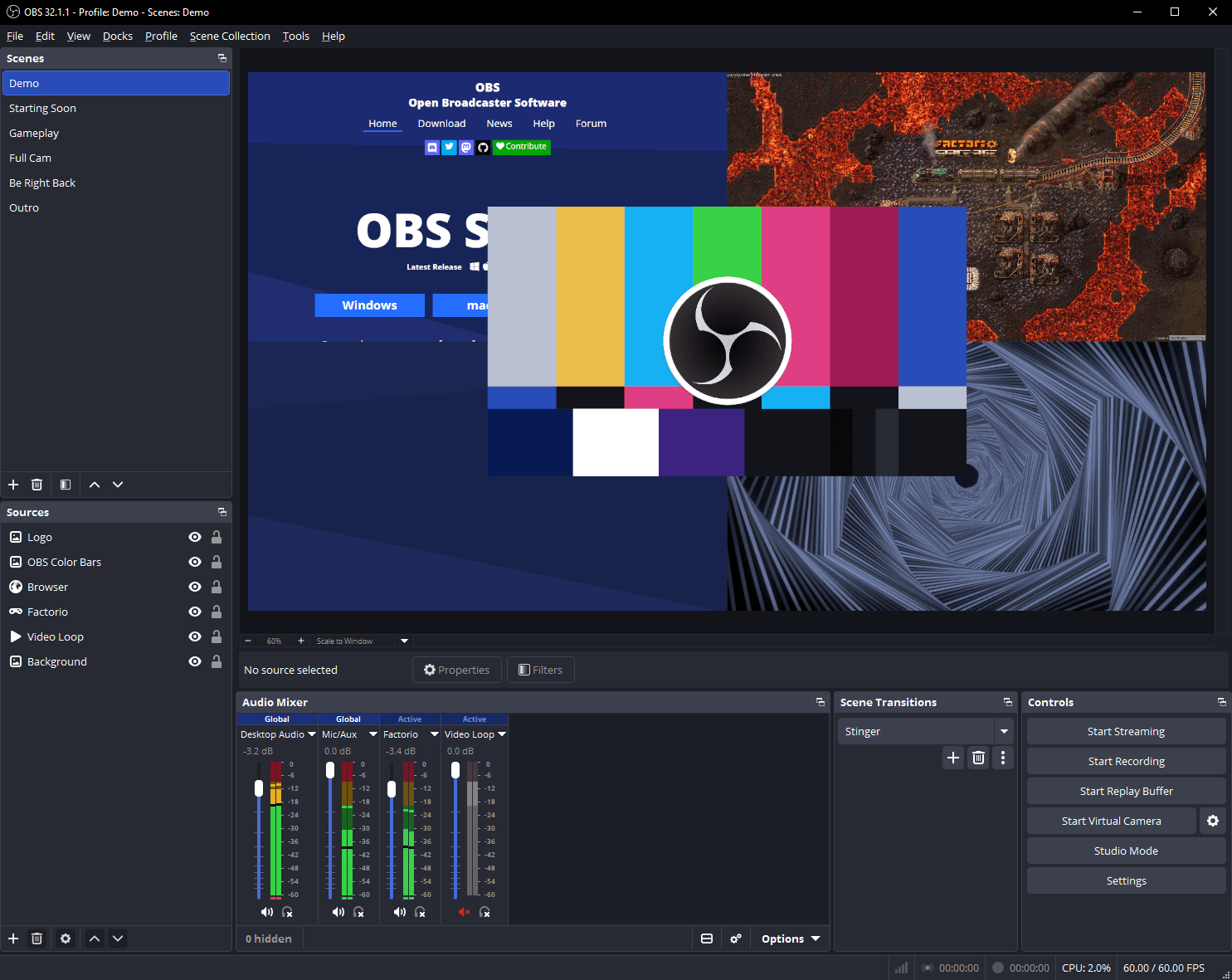
Begin inside OBS, because the simplest causes are also the most common. Open the scene where the problem happens and look at the Sources list at the bottom of the window. Is the source you expect actually there, and is it visible? A source with a closed-eye icon is hidden, and a hidden source will not appear in the preview. A source can also be present but positioned outside the visible canvas, scaled down to nothing, or covered completely by another source above it in the list. In OBS, sources higher in the list are drawn on top of sources lower down, so a full-screen black image or a solid-colour source at the top of the list can hide everything beneath it. Drag the suspected source to the top of the list, or temporarily hide the sources above it, and see whether the picture returns.
- Select the correct scene and confirm it is the active scene in the preview.
- Check that the source is visible, not hidden, and near the top of the Sources list.
- Right-click the source, open its properties, and confirm it points at a window, game or display that is currently open.
- Remove or hide any full-screen black image, colour source or overlay that could be covering it.
- Make a ten-second test recording and watch it back before changing anything else.
Choose the right capture source
OBS offers several ways to capture a picture, and choosing the wrong one for your situation is a leading cause of a black screen. Display Capture records everything on a monitor. Window Capture records one application window. Game Capture hooks directly into a game. Video Capture Device records a camera or capture card. Each method has different requirements, and a method that works for a browser window may fail for a full-screen game, while a method that works for one game may fail for another. If your current method shows black, do not keep adjusting its settings endlessly. Instead, try a different capture method for the same target in a test scene and see whether the picture appears. That single comparison often tells you more than an hour of tweaking.
When you add a new source, read its properties dialogue carefully instead of accepting every default. A Game Capture source set to capture a specific window will show black if that game is not running or if you selected the wrong executable. A Window Capture source set to capture a window by title will fail if the title changed. A Video Capture Device source will show black if another application is already using the camera, or if the wrong device is selected. In each case the fix is not a mysterious setting buried elsewhere; it is matching the source to a real, open, available target. If you are unsure which target OBS sees, close the properties, open the application you want to capture, bring it to the front, and then create a fresh source and look at the list of available windows or devices that OBS offers. That list is a useful diagnostic in itself, because a missing target there tells you the problem is outside OBS.
Graphics, GPU and display settings
Permissions and protected content
Modern operating systems ask applications for permission before they can record the screen, and OBS cannot capture what the system has not allowed it to capture. On macOS, for example, screen recording is a permission that must be granted, and OBS will show a black screen if that permission is missing or was removed after an update. On Windows, privacy and graphics settings can have a similar effect for certain applications. The exact location of these permissions varies by operating system version, so rather than following a memorised sequence of clicks that may not match your system, open your system settings and search for screen recording, screen capture, or privacy permissions, and confirm that OBS Studio is listed and allowed. If it is not listed, you may need to add it, and you will almost certainly need to quit and reopen OBS before the new permission takes effect. A permission change that is not followed by a restart is a common reason people conclude, wrongly, that permissions were not the problem.
A clean test scene that isolates the fault
- Create a new scene and add only one Display Capture source.
- Test it. If it works, add your usual sources back one at a time.
- If it fails, try one Window Capture source instead, then one Game Capture source.
- Note which methods work and which do not, and use that pattern to choose the next section of this guide.
- Only rebuild your main scene once you know which source or setting was responsible.
When to update, reset or reinstall OBS
Updating OBS is worth doing when you are on an old version and the problem began after an operating-system or driver update, because newer OBS versions often include fixes for changes in Windows, macOS or graphics drivers. The latest version at the time of writing is OBS Studio 33.0.1, released October 29, 2026, and you can download it from the official sources linked on our Windows download page or from the official OBS download page. Before updating, export your scene collection and profiles from the OBS menus, and make a copy of your settings, so you can restore them if the update does not help. A clean update that preserves your scenes is usually enough; a full uninstall is a later step, not a first step.
Common mistakes
The most common mistake is changing several settings at once and then not knowing which one mattered, or whether any of them did. A second common mistake is testing with the game or window minimised. A minimised window has nothing to capture, and OBS will often show it as black until you restore the window. A third mistake is capturing a specific window and then opening a different window with a similar name, or capturing a game that has since closed and reopened with a different process. A fourth mistake is assuming that a black screen means OBS is broken and reinstalling it immediately, without checking the source, the scene, or the graphics settings first. A fifth mistake is forgetting to restart OBS after a permission or graphics change, so a fix that would have worked appears to fail. Finally, many people test only the preview and never make a test recording, so they miss the difference between a preview problem and a capture problem. Avoiding these mistakes does not guarantee a fix, because some black-screen causes depend on the particular combination of hardware, driver and application on your system, but it does make the diagnostic process much shorter and much less frustrating.
Troubleshooting
If the preview is black for every source, focus on graphics and permissions: confirm OBS and your game use the same graphics processor, check screen-recording permission, update or roll back your graphics driver, and test with a clean scene. If only one game is black, try Window Capture in borderless windowed mode, close overlays from other programs, and check whether that game needs to be running before you create the Game Capture source. If only one window is black, restore the window, turn off hardware acceleration in that application if it has the option, and test with a different window from the same application. If Display Capture works but Game Capture does not, the game hook or the graphics assignment is the likely area, and our guide to OBS settings for a low-end PC may help you simplify the setup while you test. If the picture returns and then disappears again after a restart, check whether a graphics or permission setting reverted, or whether another program is starting with your computer and conflicting with OBS. If nothing in this guide resolves the problem, keep your notes and ask for help with the exact OBS version, operating system, graphics hardware, capture method, and the pattern from your clean-scene test, because those details are what allow someone else to help you efficiently.
Frequently asked questions
Why is my OBS screen black but my game works fine?
Your game can run normally while OBS cannot see it, usually because OBS is using a different graphics processor from the game, because the capture method does not suit that game, or because the game is in exclusive full-screen mode. Try Window Capture with the game in borderless windowed mode, and check that OBS and the game use the same graphics processor.
Why does Display Capture work but Game Capture show black?
Display Capture records the whole monitor, while Game Capture needs to hook into the game itself. If the hook fails, Game Capture shows black even though the display is visible. Try creating the Game Capture source while the game is running, close overlays from other programs, and test the game in borderless windowed mode with Window Capture as a comparison.
Can a Windows or macOS update cause an OBS black screen?
Yes, an operating-system update can change graphics settings or reset screen-recording permissions, and a graphics-driver update can have a similar effect. After an update, check permissions, confirm the graphics-processor setting for OBS, and test with a clean scene before changing OBS settings more widely.
Should I reinstall OBS to fix a black screen?
Reinstalling is a last resort, not a first step. It does not fix graphics settings, permissions, or a wrong capture source. Back up your scene collection first, test with a clean scene, and only reinstall if you have ruled out the capture, graphics and permission causes in this guide.
Why is only one window black in OBS?
That window may be minimised, may be showing protected content, or may use hardware acceleration that interferes with capture. Restore the window, test with a different window, and if the application offers a hardware-acceleration setting, try turning it off and restarting the application.
Conclusion
A black screen in OBS is rarely a sign that the program itself is broken. More often it is a mismatch between the capture source, the graphics processor, the permissions on your system, or the state of the window you are trying to record. Work through the checks in order, change one thing at a time, and use a clean test scene to separate a scene problem from a system-wide problem. Keep notes, make short test recordings, and do not reinstall OBS until you have ruled out the simpler causes. If the picture returns, rebuild your scene carefully and test it again before your next stream or recording. If it does not, your notes about what worked, what did not, and which capture methods behaved differently will make any further help much faster and more useful. For related settings, see our guides on OBS audio settings and the best OBS recording settings.